
Hours and holidays
Set when the team is open, add holidays, and give a team its own hours.
- Plans
- From Starter
- Who can
- Owners and admins
- Where
- Settings → Hours
- Last updated
Open hours decide when reply clocks run. Holidays stop them for the day, and a team can keep hours of its own.
#Open hours
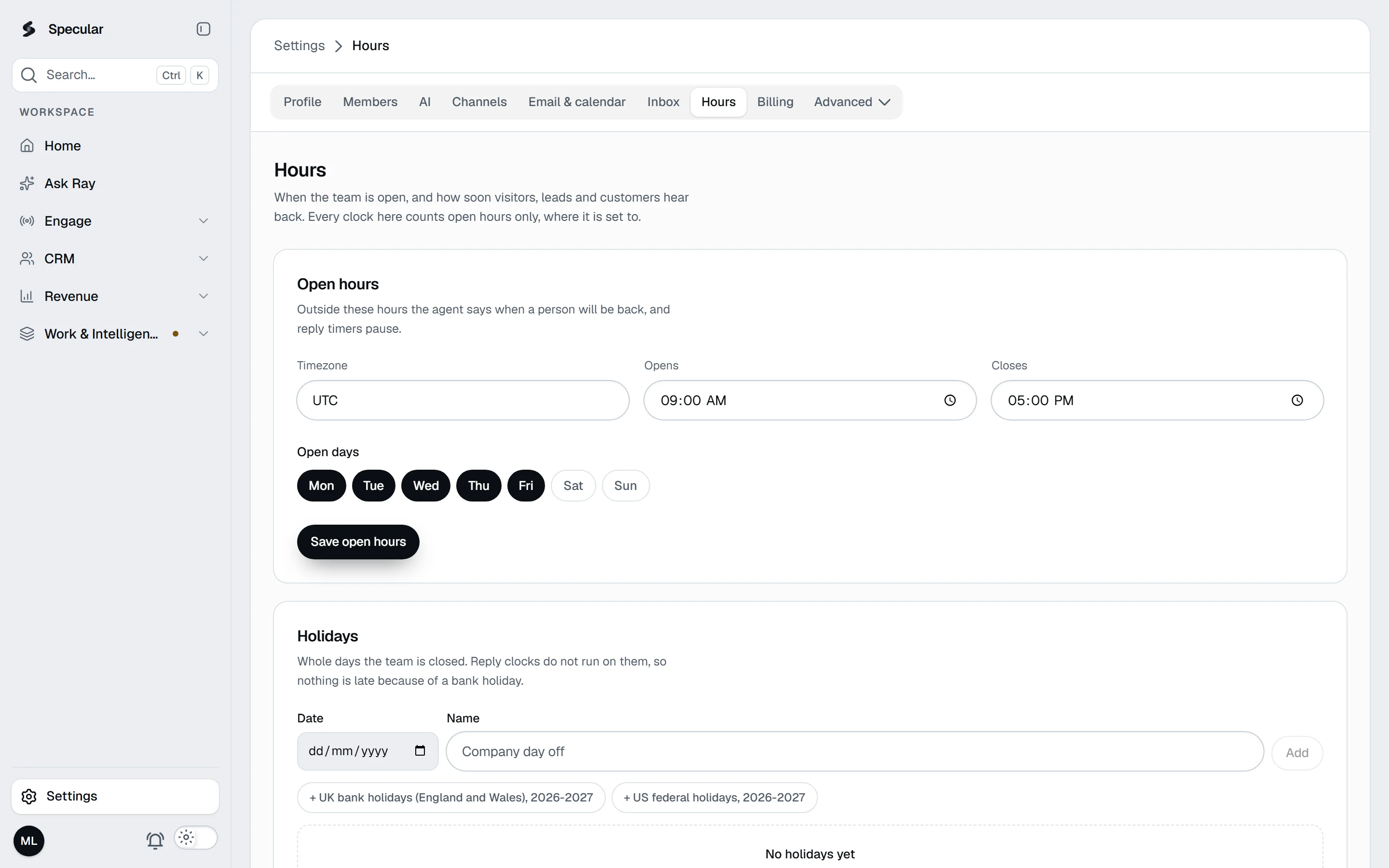
- Go to Settings → Hours.
- Choose the time zone, the days you are open and the opening and closing times.
- Save.
#Holidays
- Under Holidays, pick a Date, give it a Name and click Add.
- Or click + UK bank holidays or + US federal holidays to add a country’s days for this year and next.
- Click Save holidays.
#A team’s own hours
A team keeps the Workspace hours unless you choose Own hours and set its time zone, days and times, then Save team hours. Conversations with that team run their clocks on its hours, with the workspace’s holidays.
#How clocks use them
A first-reply or resolution clock only counts time when you are open: it pauses overnight, at weekends and on holidays, and resumes when you open.