
Have Ray set up the CRM
Ask Ray to add fields and their rules, save views and create your own kinds of record.
- Plans
- Every plan
- Who can
- Members who can configure the CRM
- Where
- Ask Ray
- Last updated
Ray can set up the CRM from a conversation: add fields and set their rules, save list views, and create kinds of record of your own. It uses the same settings an admin uses, so every change appears where you would expect it and can be changed back there.
Before you start
- The right to configure the CRM fields and objects change what everyone sees
- A clear name for what you want Ray uses your words for the field or view name
#What Ray can set up
- A field on any kind of record, of any type, with its choices.
- A field’s rules: when it shows, when it is needed, how a value is checked.
- A saved view: filters, columns, sort and layout.
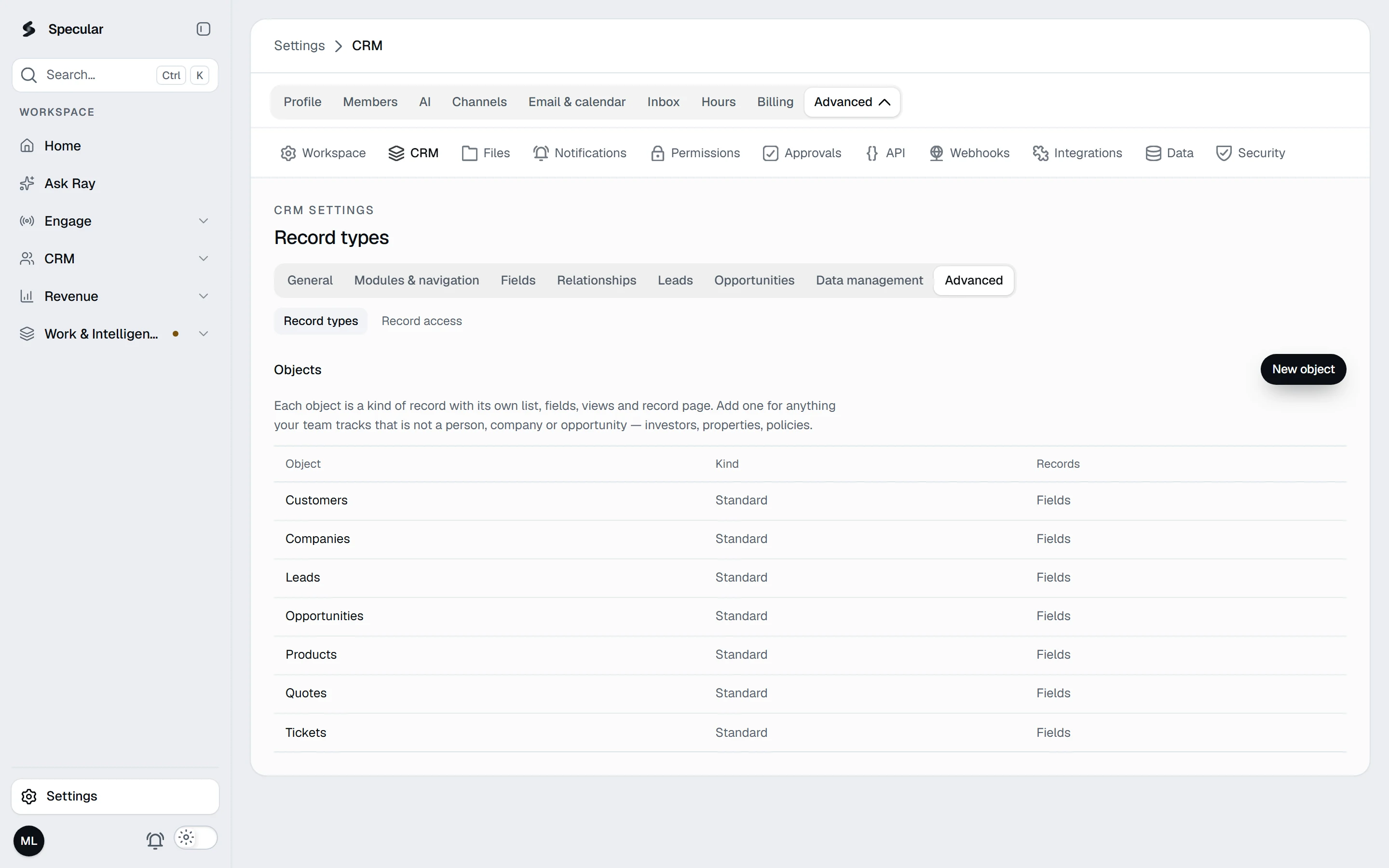
- A kind of record of your own, with up to ten fields of its own.
#Add a field
- Open Ask Ray.
- Ask, for example Add a rating field called Fit score to companies.
- Click the link in What Ray did. It opens Settings → CRM → Fields with the new field in the list.
#Save a view
- Ask, for example Save a gallery view of companies called Top accounts.
- Click the link Ray gives. The list opens on the new view, in the layout you asked for.
#Create a kind of record
- Ask, for example Create an object called Investor with Fund size, Focus.
- Open the link Ray gives: the new list, with its own record pages and the fields you named.
#Checking and undoing
Every change is recorded as Ray’s in the audit trail. Fields can be archived and their earlier versions restored from Settings → CRM → Fields → Version history; a view can be deleted from the list’s view menu.