
Import from a spreadsheet
Bring customers, companies, leads, opportunities or products in from a CSV file.
- Plans
- Every plan
- Who can
- Members with write access to customers
- Where
- Settings → CRM → Data management → Open import
- Last updated
Bring records in from a spreadsheet saved as CSV: customers, companies, leads, opportunities, or a price list of products. Nothing is saved until the last step, and existing records are matched rather than duplicated.
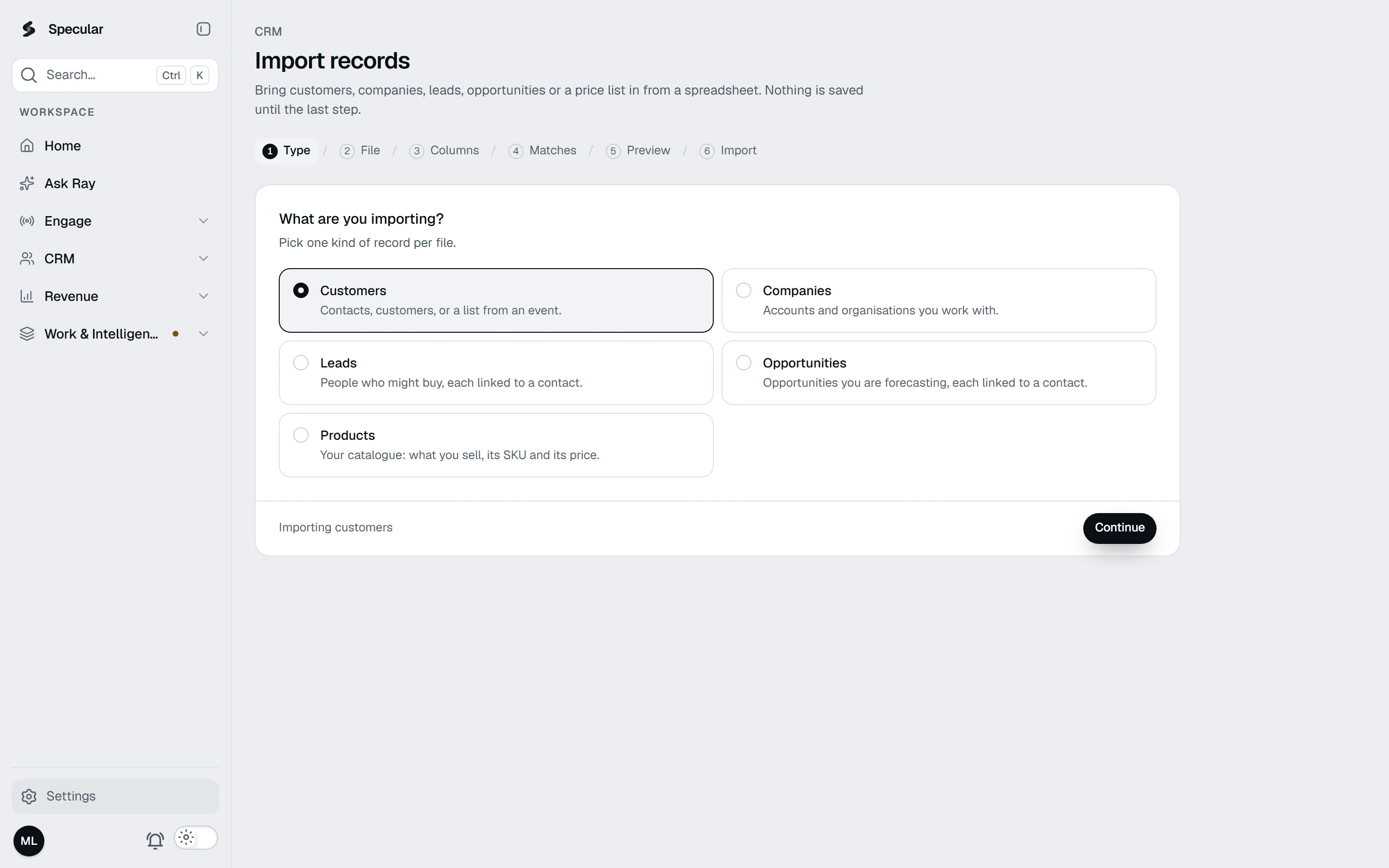
- 01Pick the recordCustomers, companies, leads, opportunities or products.
- 02Add the fileA CSV with a header row.
- 03Match columnsEach column to the field it fills.
- 04Check and importWhat is added, updated and skipped, before anything is saved.
Before you start
- A CSV file with a header row the first row names the columns
- One kind of record per file customers in one file, companies in another
#Prepare the file
Every customer needs a name or an email; every company needs a name. Add your own fields first if the file has columns the CRM does not yet have.
#Import it
- Go to Settings → CRM → Data management and click Open import.
- Choose the kind of record, then Continue.
- Drop the file or click Choose a CSV file, then Continue.
- On Match your columns to fields, check each column goes to the right field, then Continue.
- On Check before importing, read what will be added, updated and skipped, and click Import N rows (N is the number of rows going in).
#After the import
The import finishes with what was added, updated, skipped and not imported, and looks for duplicates straight away, so Data quality shows them at once.
#Troubleshooting
- The import paused
- Click Try again: it carries on from where it stopped.
- Rows were not imported
- They broke a rule (a missing name, a value out of range). The summary says which and why.