
Record pages
Read and edit a record, step through a list with J and K, arrange the page, and mention records in notes.
- Plans
- Every plan
- Who can
- Everyone reads; configure the CRM to arrange
- Where
- Any record, for example Companies → a company
- Last updated
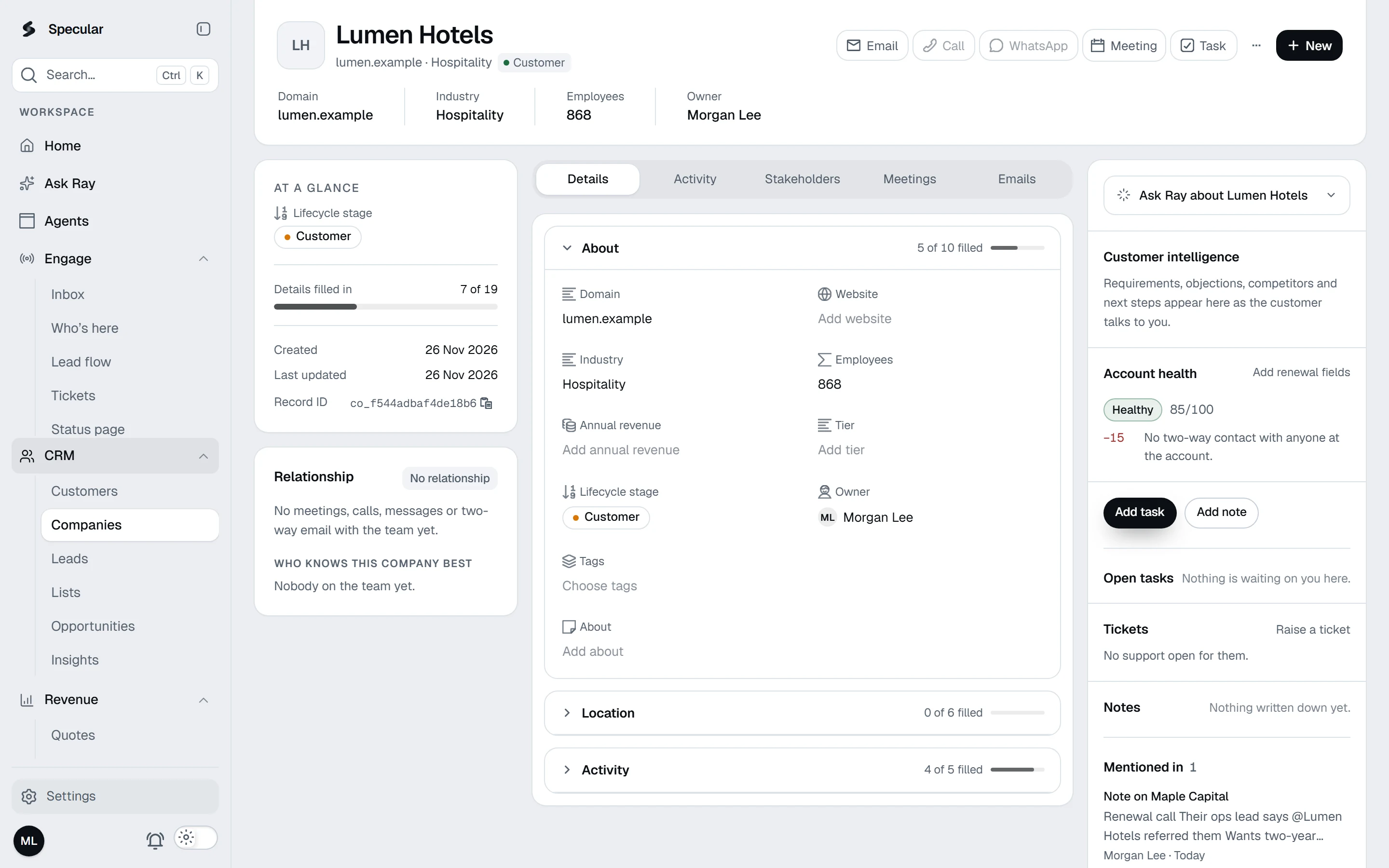
Every record (a customer, company, lead, opportunity, product, quote, ticket or one of your own kinds) opens on the same kind of page, so the team always knows where to look.
#How a record is laid out
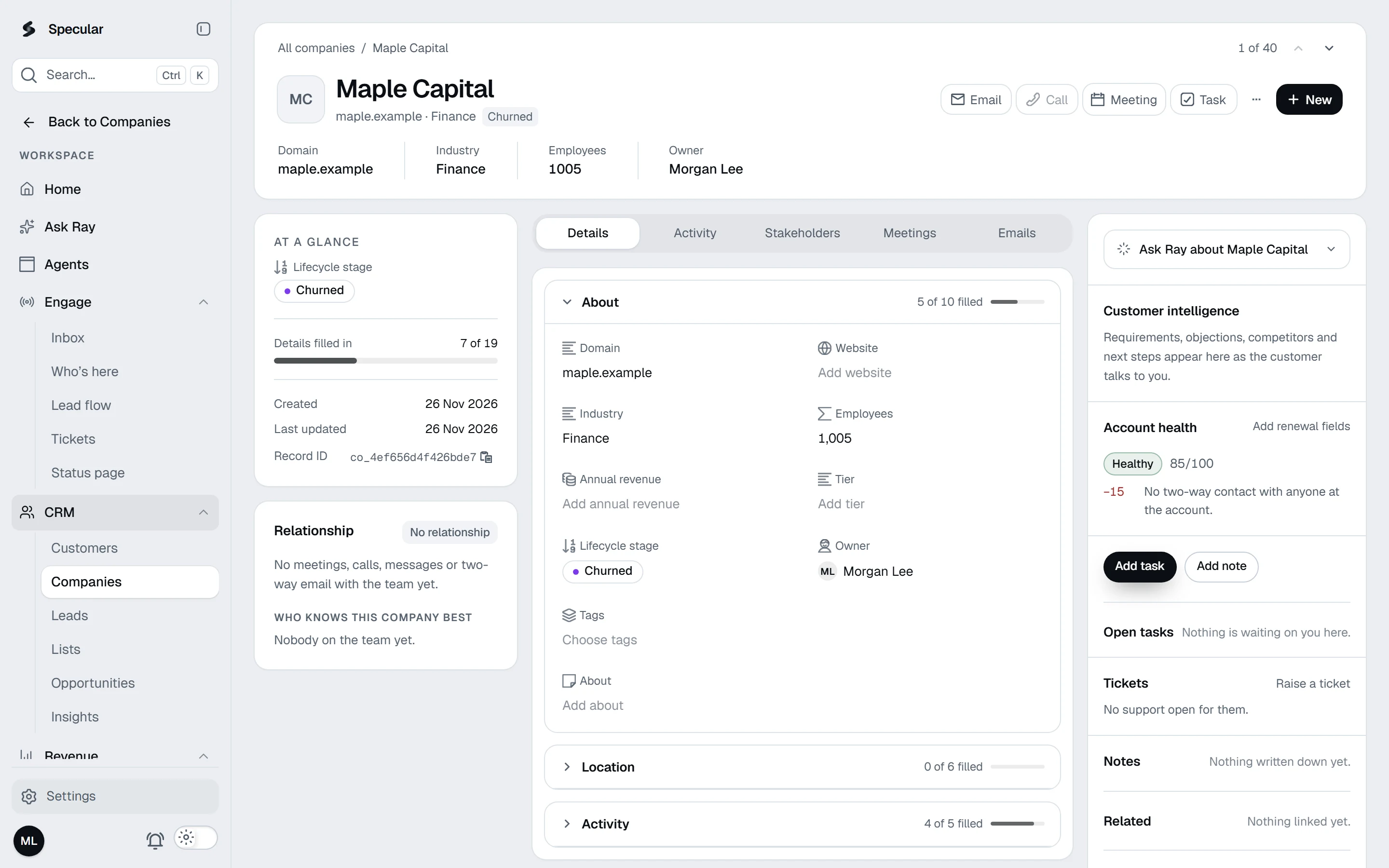
- The header: the name, badges, the figures that matter as highlights, and the actions of the day (Email, Call, Meeting, Task, and the ··· menu).
- At a glance on the left: the record’s status, money, next date, owner and links, how many of its details are filled in, when it was created and last updated, and its record ID to copy.
- Details in the middle, as the first tab: every field in its section, each with an icon for its type, two to a row, with long text and notes across the full width. Each section shows how many of its fields are filled. Then the record’s own tabs (Activity, Meetings, Emails, Products and so on).
- The rail on the right: Ask Ray, customer intelligence, tasks, tickets, notes, where the record was mentioned, related records and lists.
#Edit in place
- Click a value in Details.
- Change it and press Enter, or Esc to leave it as it was.
- An empty field says what it wants, such as Add website or Choose status: click it to fill it in.
#Previous and next
Open a record from a list and the header shows where it sits, for example 3 of 40, with arrows. Press J for the next record and K for the previous one (or Alt with the arrow keys). The breadcrumb takes you back to the list as you left it: same view, filters and sort.
#Arrange the page
Before you start
- The right to configure the CRM a layout changes the page for others
- On any record, click ··· in the header, then Edit layout.
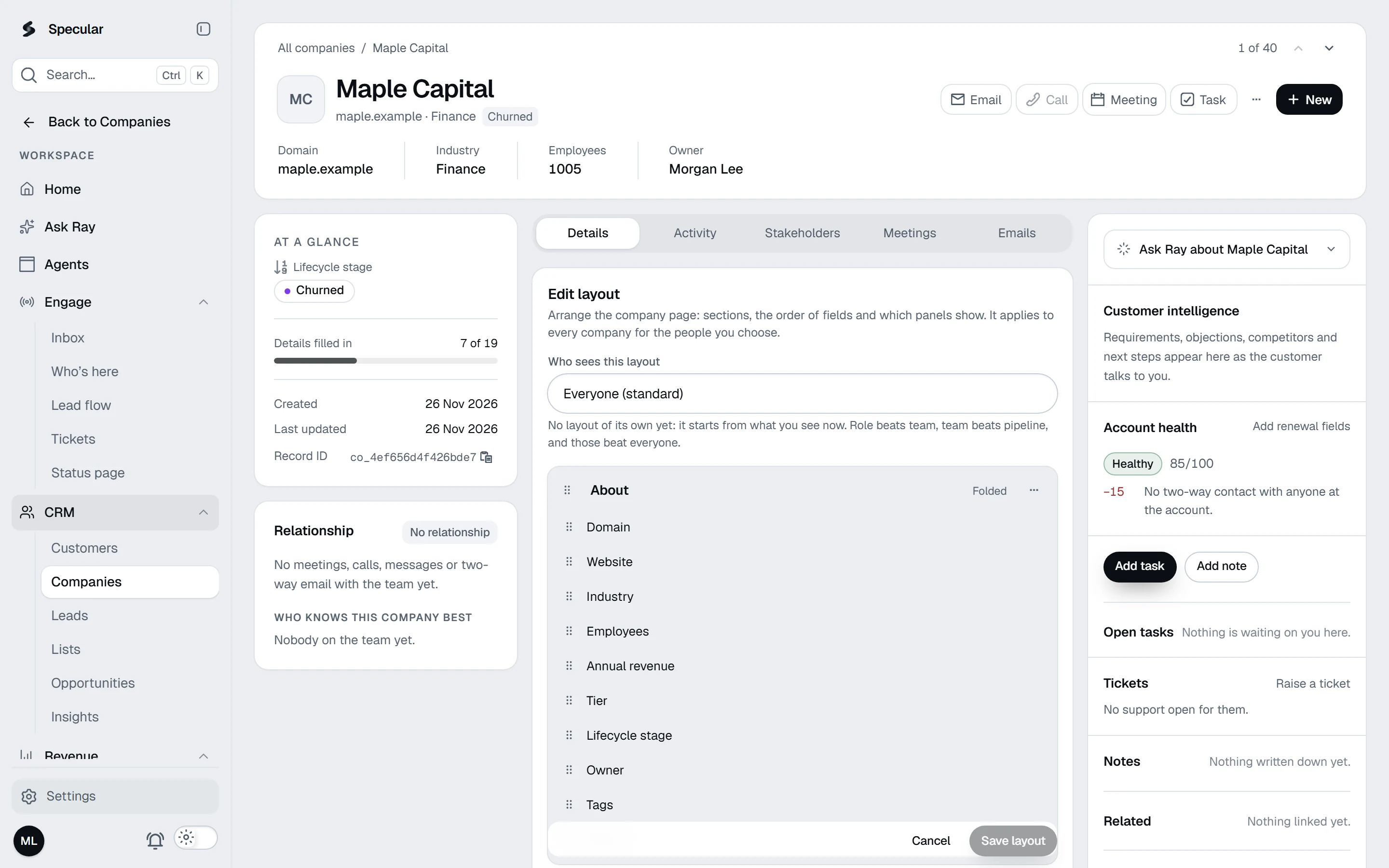
- In the editor that replaces Details, rename sections, add or remove them, and fold the ones people rarely need.
- Drag fields between sections, or use a field’s menu to move it up, down or to another section.
- Show, hide or move the panels of each column.
- Under Who sees this layout, choose Everyone, a role, a team or, for opportunities, a pipeline.
- Click Save layout. The toast offers Undo.
#Notes and mentions
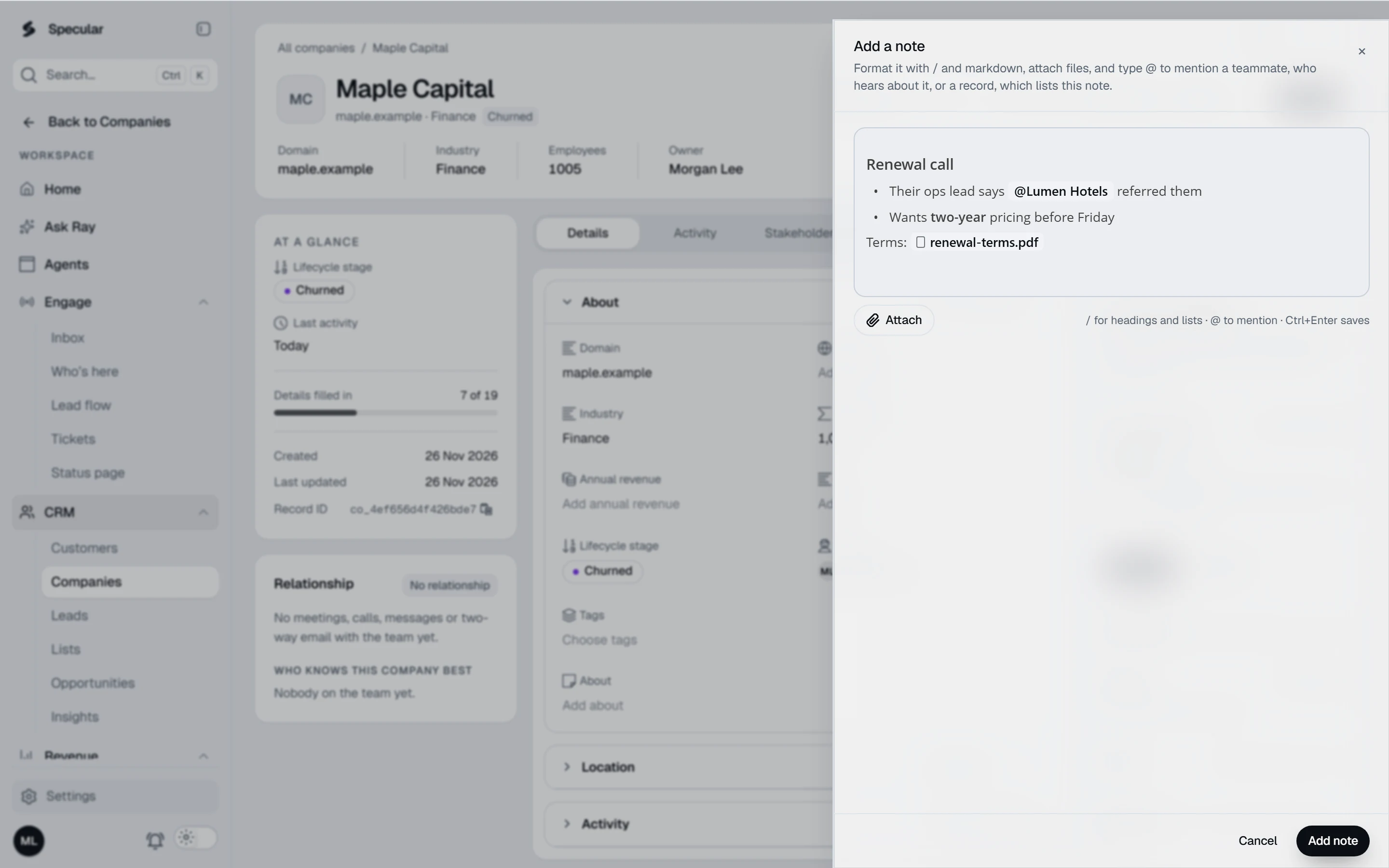
Notes are rich text: headings, bold and italic, bullet, numbered and check lists, quotes, code and links. Type / for the menu, or markdown such as ##, - and **bold**. A note can carry files and name teammates and other records. Naming a record links the two both ways: the note shows the record as a link, and the record lists the note under Mentioned in. A conversation about an account that happened on a deal, a contact or in the inbox is then one click from the account itself.
- On a record, click Add note in the rail, or ··· then Add note….
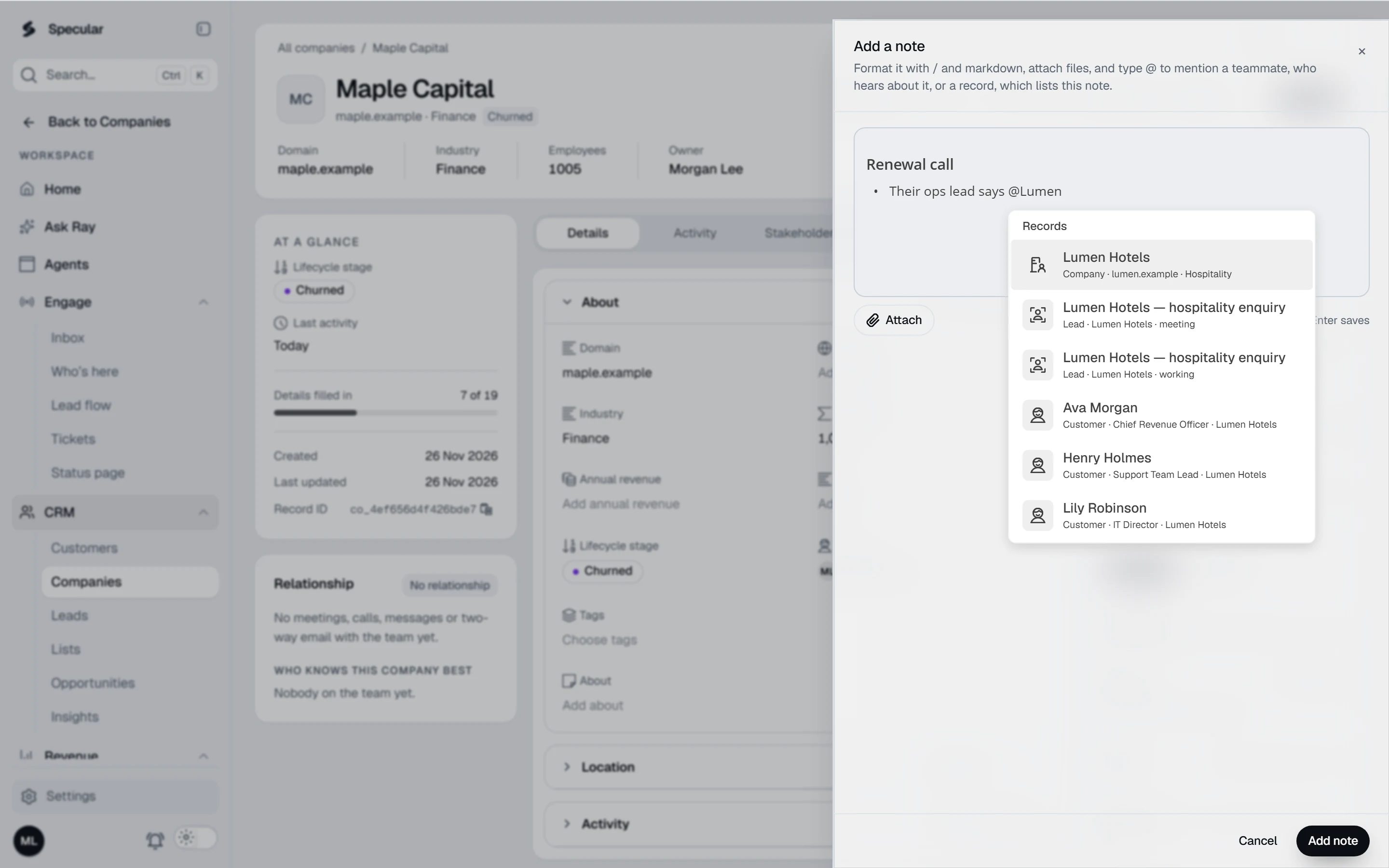
- Type @ and the first letters of a name. Teammates and records (customers, companies, leads, opportunities and your own objects) appear as you type.
- Pick one with the arrow keys and Enter, or click it. Esc closes the list and leaves what you typed.
- Type ; to insert a snippet: the same saved replies the inbox offers with /, such as a call notes template. Several lines go in as headings, lists and checklists.
- To add a file, click Attach: upload one from your computer (up to 16 MB) or pick one already in Files. It goes into the note as a link that opens the file, and into the workspace’s Files.
- Click Add note, or press Ctrl + Enter.
A teammate you name is told about the note. A record you name lists it, with where it was written, who wrote it and when; click it to open the note where it lives. Internal notes in the inbox work the same way, and are listed only to people who can open the inbox.
Name @Ray to ask a question in place, such as “@Ray what did they ask about pricing?”. Ray reads the record’s details and notes and answers in its own note on the record a few seconds later. Each answer uses AI credits from the internal pool.
#Create linked records
On a company, New creates a customer at this company or an opportunity with it, with the company already filled in. On a customer, Opportunity does the same for a deal.