
Fields
Add your own fields of any type, from text and choices to ratings, addresses and files.
- Plans
- Every plan
- Who can
- Members who can configure the CRM
- Where
- Settings → CRM → Fields
- Last updated
Records come with standard fields. Add your own for anything else your business tracks, of whichever type fits the answer.
#Add a field
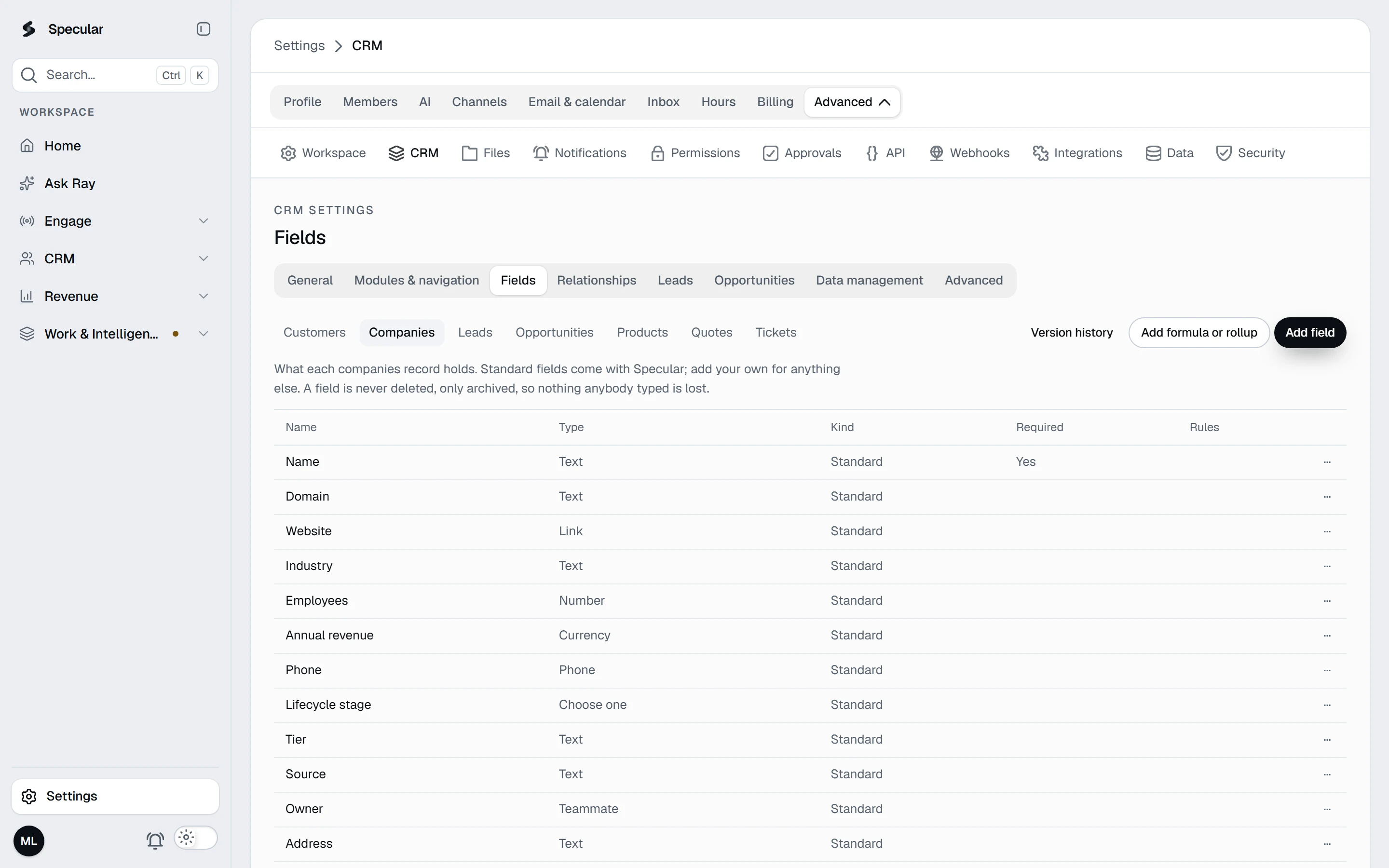
- Go to Settings → CRM → Fields and choose the kind of record, for example Companies.
- Click Add field.
- Give it a name and choose its type. For a choice, write the options one per line.
- Click Add field. It appears on every record of that kind, and as a column and a filter.
#Field types
- Text, long text, email, phone and link.
- Rich text: headings, bold and italic, bullet, numbered and check lists, quotes and links. Type / for the menu, or use markdown such as ## and -. It reads formatted on the record and as two plain lines in a table.
- Number, money, percent and duration (typed as people say it, like 1h 30m).
- Yes or no, date, and date and time.
- Choose one, choose several, and tags (any words).
- Rating, one to five stars.
- Address, in parts, with a link to the map.
- Files: up to ten documents kept on the record, such as a signed contract.
- A teammate, or a link to another record.
- Formula and rollup fields, worked out from others.
#Standard fields
Standard fields cannot be removed, but they can take rules, such as a range on Employees.
#Archive a field
Click ··· beside one of your fields, then Archive. It leaves every screen and filter, and the values people typed are kept.