
Lists and views
Table, board, calendar, timeline and gallery, with filters and columns saved as views.
- Plans
- Every plan; leads and pipeline from Starter
- Who can
- Everyone
- Where
- Customers, Companies, Leads, Opportunities, or any list
- Last updated
Every list (customers, companies, leads, opportunities, products, quotes, tickets and your own objects) can be laid out five ways, filtered and saved as a view the team can reuse.
#Five layouts
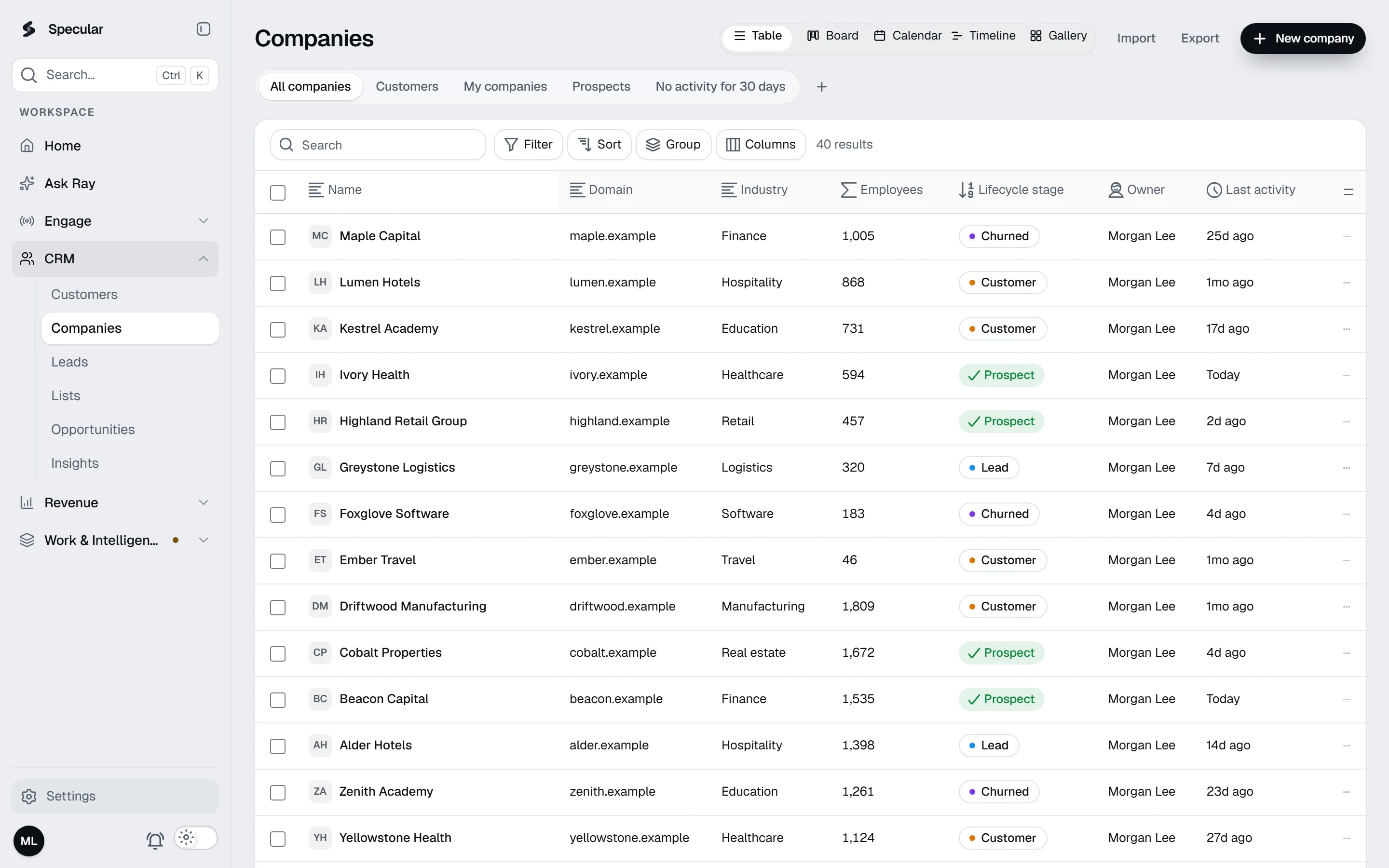
- Table: rows and columns, edited in place.
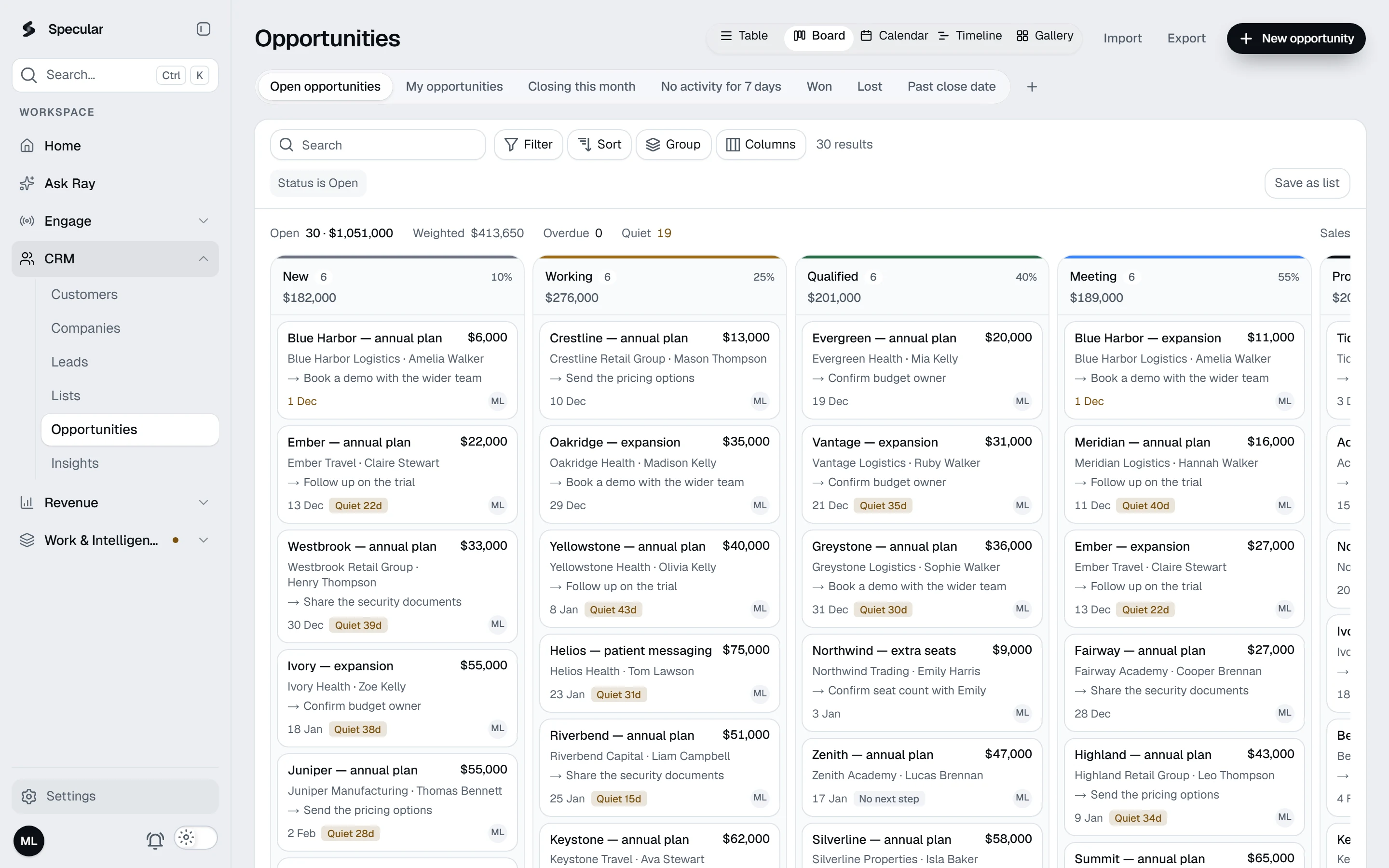
- Board: cards in columns by stage or by any choice field.
- Calendar: records on a month by one of their dates.
- Timeline: records in date order.
- Gallery: a card for each record.
Switch with the buttons at the top right of the list.
#Filter, sort and columns
- Click Filter and choose a field, a condition and a value.
- Click Sort to order the list, Group to group it.
- Click Columns to choose and order the columns.
#Save a view
- Set the list up the way you want it.
- Click Save view to update the view you are on, or Save as new to name a new one.
- The view appears in the row of views above the list. Rename or delete it from its menu.
#Working in the table
- The name column stays put while the others scroll.
- Drag a column’s edge to widen it; double-click the edge to reset it.
- Compact rows fits more on the screen. Widths and density are remembered.
- Arrow keys move between cells, Enter edits, Esc cancels.
- Every edit shows a toast with Undo.
#Change many at once
Tick records to bring up the bar at the bottom: Assign, Add to list, Tag, Export, Archive, and when a field is set up for it, ✦ Ray fills….