
Field rules
Show a field only when it applies, make it needed when it matters, and check values.
- Plans
- Every plan
- Who can
- Members who can configure the CRM
- Where
- Settings → CRM → Fields → a field → Rules…
- Last updated
Rules shape a record without code: a field shows only when it applies, is marked as needed when it matters, and refuses a value that does not fit, in your words.
#Open a field’s rules
- Go to Settings → CRM → Fields.
- Click ··· beside the field, then Rules…. Standard fields have rules too.
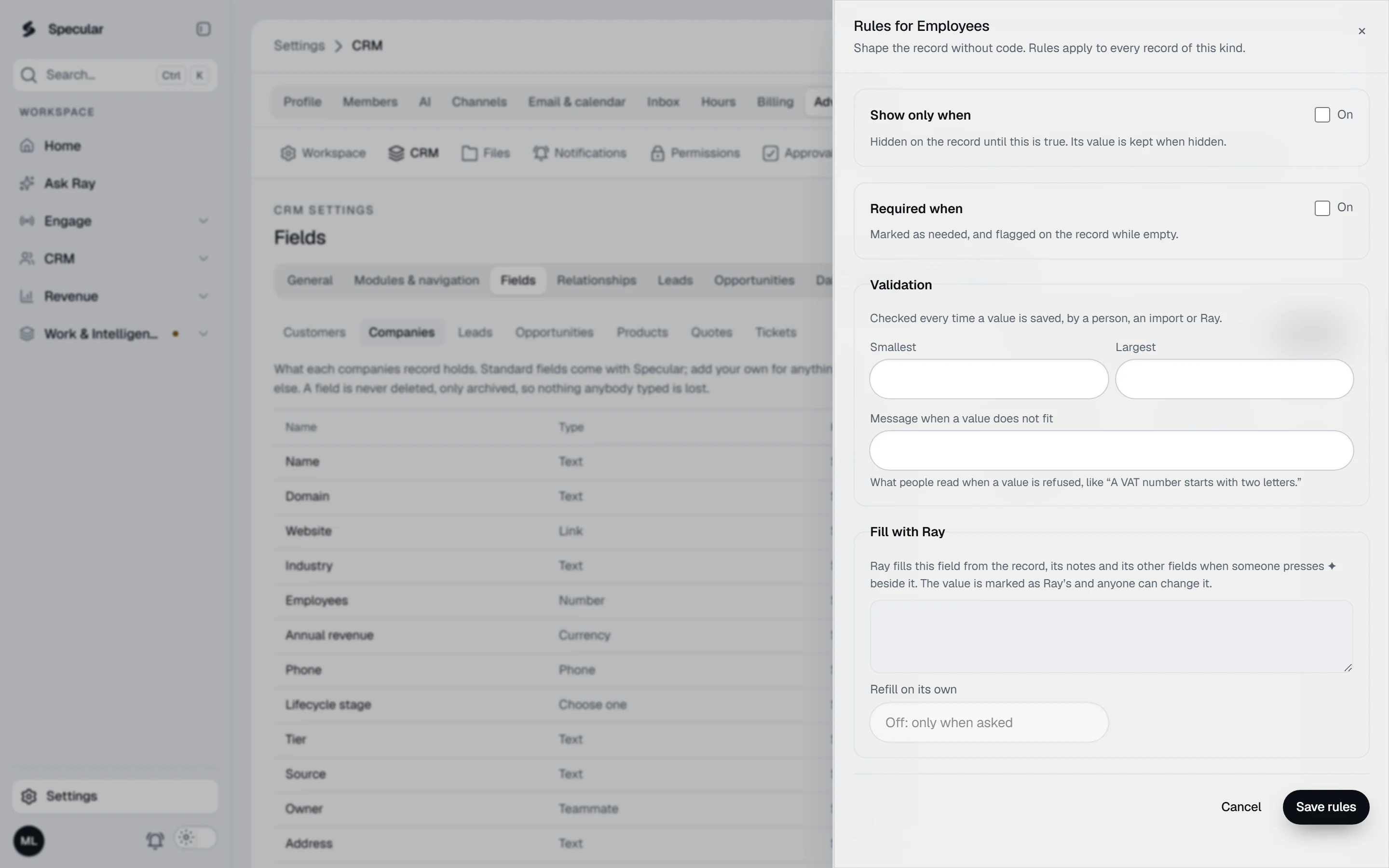
#Show only when
- Tick On beside Show only when.
- Choose the other field, the condition (is, is not, is set, is empty, is one of) and the value.
The field stays hidden on the record until the condition holds; its value is kept meanwhile.
#Required when
Set a condition the same way. While it holds, the field is marked Needed on the record.
#Validation
- For a number, set Smallest and Largest; for text, the shortest and longest length, or a Pattern.
- Write the Message people read when a value is refused.
- Click Save rules. The rule is checked everywhere a value is written: the record, the table, imports, the API and Ray.
#Troubleshooting
- A field has vanished from a record
- Its Show only when condition does not hold for that record.
- An import row was refused
- A value broke a field's validation. The import says which row and why.
- Rules… is not offered for a field
- Read-only, worked-out, stage and score fields cannot have rules.