Forms
Share a form or embed it on your site, and every response becomes a contact, lead, opportunity, company or record of your own.
- Plans
- Every plan
- Who can
- Anyone who can edit customers
- Where
- CRM → Forms
- Last updated
A form is a page you share, or a box you embed on your own site, that writes every answer straight into the CRM. Each response makes a record (a contact, a lead, an opportunity, a company or one of your own objects), matched to the person who sent it, and tells the teammates you choose.
#Make a form
- Open CRM → Forms and click New form.
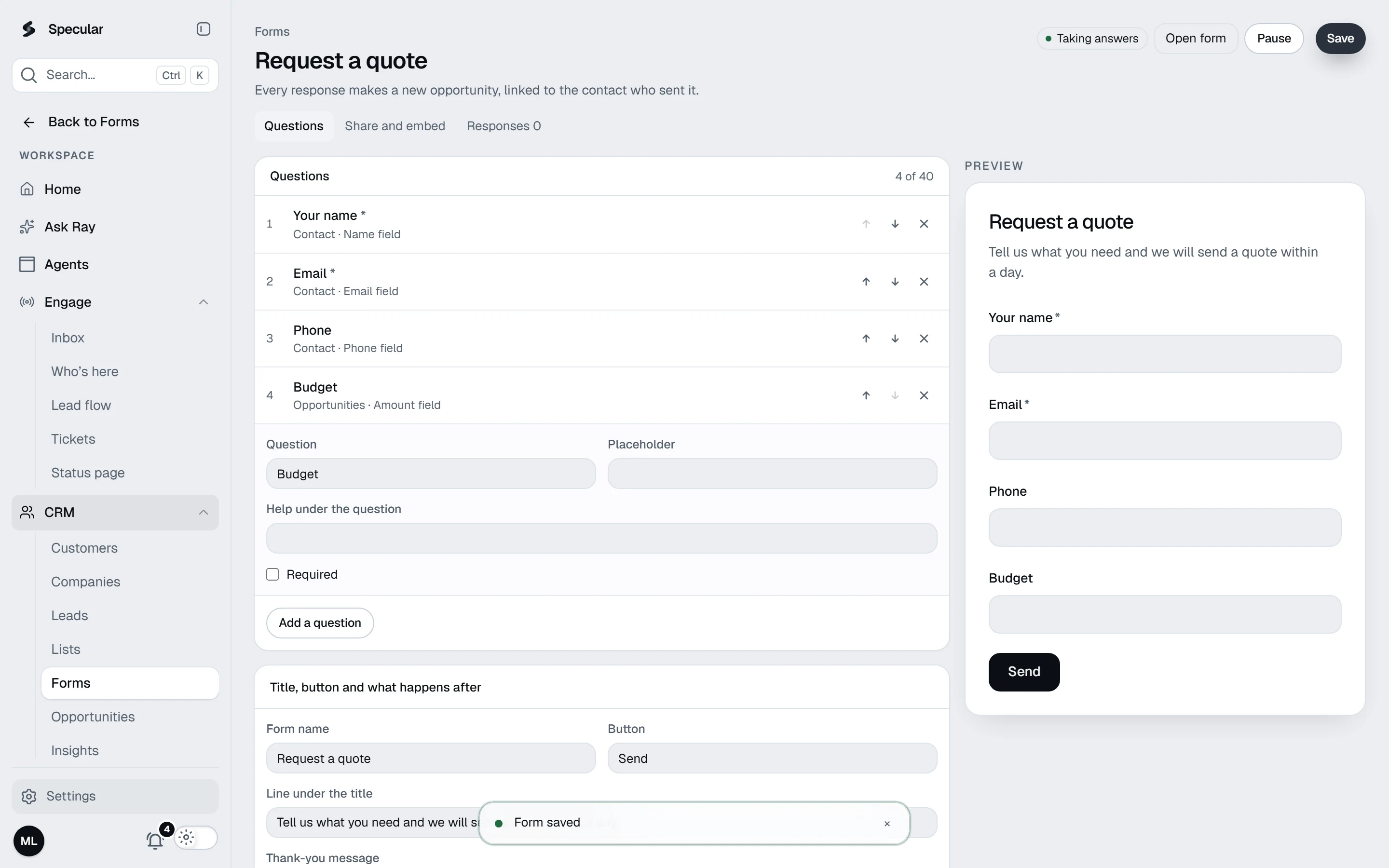
- Name it and choose what each response makes. A quote request makes an opportunity; a property listing makes a Property, if you keep one.
- Click Add a question and pick a field. Questions about the contact (name, email, phone) fill in the contact; the rest fill in the record. Rename the question, add help text and mark it required.
- Set the button, the thank-you message or a page to send people to, and who hears about each response. Click Save.
#Share or embed it
Share and embed gives you three ways in:
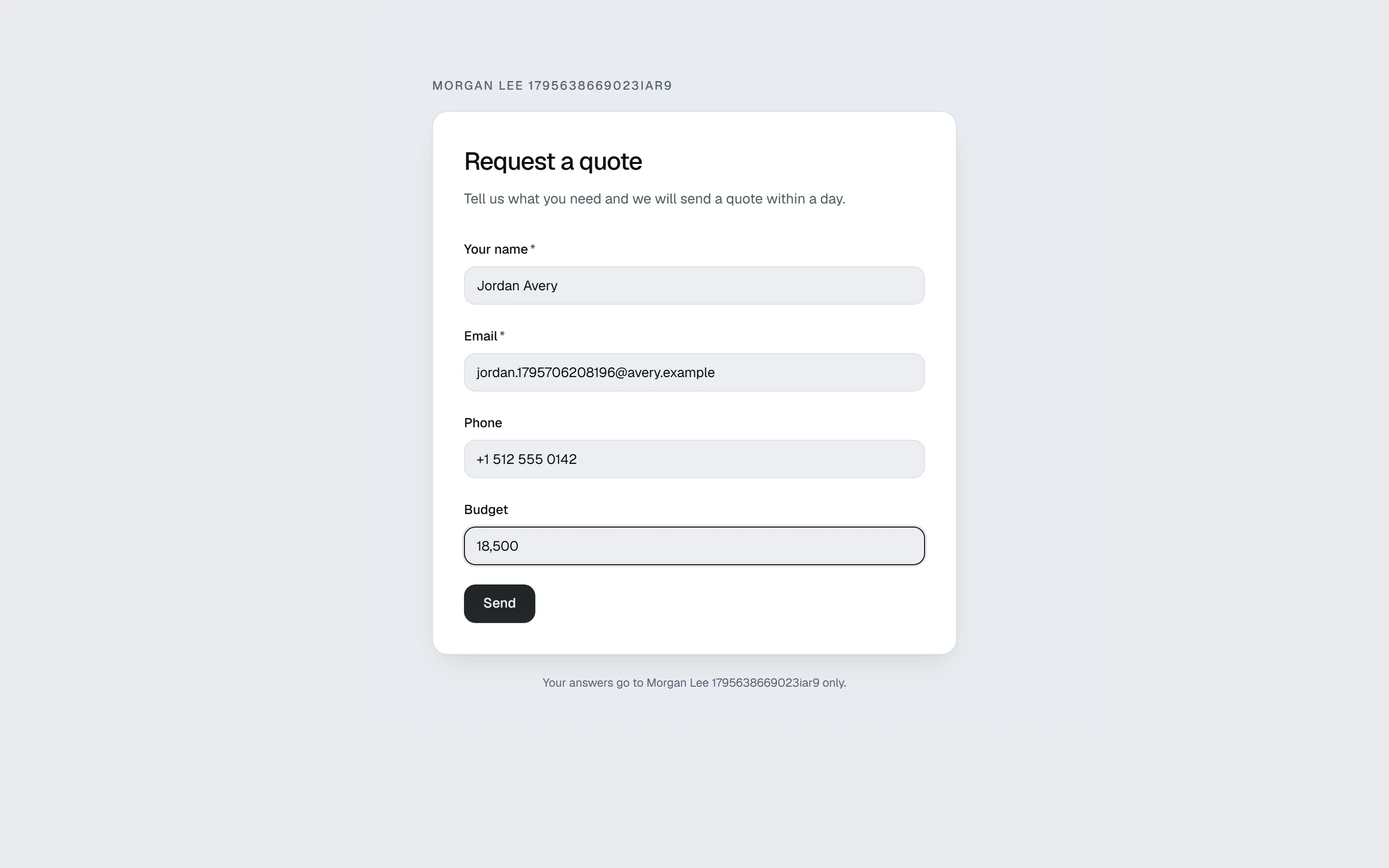
- A link to the hosted page, for emails, social posts and QR codes.
- An embed snippet for your website. The form sizes itself to fit and picks up the page’s campaign tags (utm_source and the rest).
- An address for a form you already have. Name each input after its field (email, phone) and post it there.
#What happens to a response
- A known email is matched to the existing contact. Their details are never overwritten by a form; the answers are added to their record as a note.
- A new email makes a new contact, with the form recorded as the lead source.
- The form’s record is made and linked to the contact. On your own objects, a field that links to people is filled with the contact.
- Automations that start when a record is created run as usual, so you can route, score or follow up straight away.
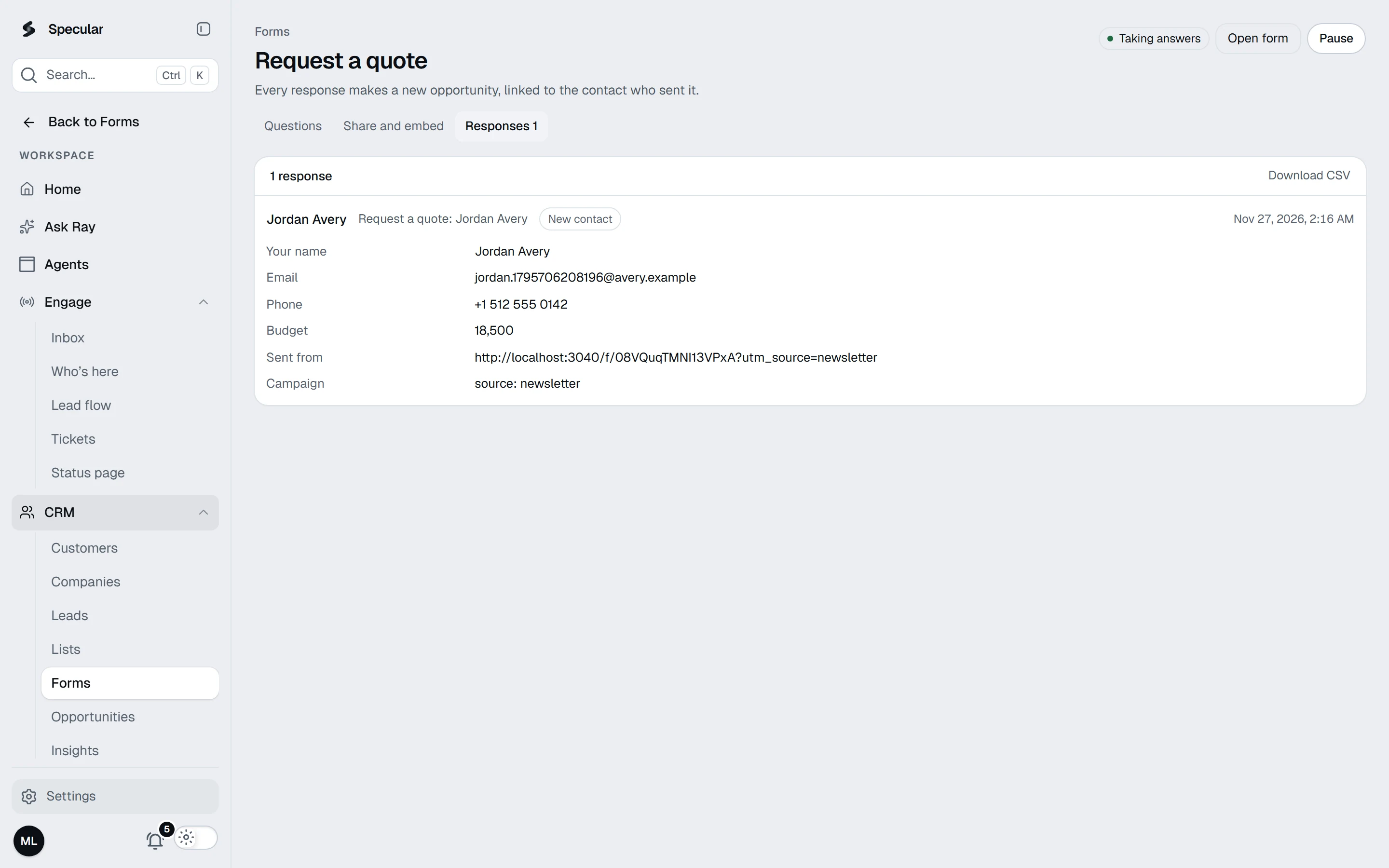
Responses lists every answer with the record it made, where it was sent from and its campaign. Download them as CSV from the same tab.